
OHANA FEATURES
Ohana Now Supports Windows
Phones aren't the only screens kids use. With Ohana's new Windows support, you can now manage screen time and protect your kid's online experience across even more devices.

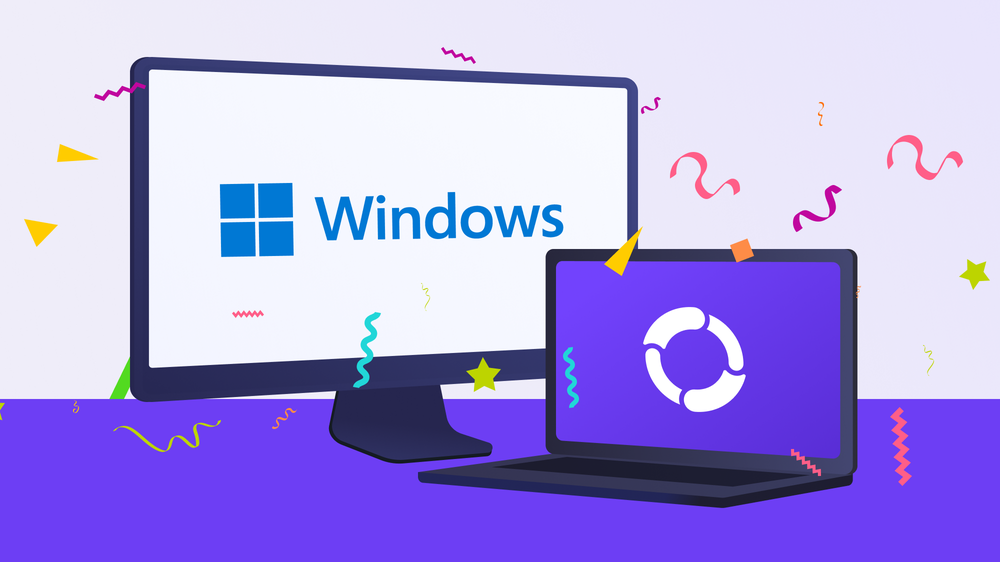
Until now, Ohana helped parents manage their kid's iPhone, iPad, and Android devices. But many kids also use Windows computers for school, gaming, and everyday browsing. That is why we've added support for Windows.
You can now pair your kid's Windows device with Ohana and manage it just like any other device in your family setup. This makes it easier to create consistent routines, no matter which screen your kid is using.
What you can do on Windows with Ohana
Once your kid's Windows device is paired, you can use the same core tools you already use on mobile - all controlled from your phone.
Screen time limits
Set daily screen time limits for your kid's Windows device. When the limit is reached, the device locks automatically.
Schedules
Create schedules for school nights, homework time, or bedtime. This feature helps turn expectations into consistent routines.
Block apps
With Ohana, you can block specific apps on your kid's Windows device whenever needed.
Web Protection
Ohana's Web Protection helps filter harmful or inappropriate websites and gives parents more control over what their kid can access online.
What is not available (yet)
A few features are currently not supported on Windows devices.
Location tracking and Geofences are not available on Windows devices. These features rely on mobile location services, which are not available in the same way on computers.
Smart App Check is also not available on Windows yet, but we're already working on bringing it to the platform.
How to pair a Windows device
Pairing a Windows device works just like adding any other device in Ohana.
- Download Ohana for Windows here and install it on your kid's device
- Open Ohana on your phone
- Go to your kid's profile
- Under Devices, tap Add device
- Follow the instructions to complete the setup
Keep things consistent across devices
Whether your kid uses an Android phone, an iPhone, an iPad, or a Windows device, you can manage everything in one place.
Add each device to Ohana and keep the same screen time limits, schedules, and protections across all of them.
Related Posts
Invite Friends to Ohana and Get Rewarded!
Discover our "Invite Friends" option – your ticket to enjoying Ohana PLUS benefits for free. Share Ohana with other families while unlocking extra PLUS months for yourself!

Feature Spotlight: Advanced Blocking
With Advanced Blocking, Ohana brings even more flexibility to Web Protection. In the new categories Social Media, Video Platforms, and AI Chatbots you can now decide exactly which platforms are allowed, and which aren't.